


It’s time you upped your WordPress server monitoring game for easier, more efficient, and more powerful troubleshooting and maintenance. Here’s how.
Introduction: Why WordPress Server Monitoring is Your Silent Superpower
Picture this: Your #WordPress site is buzzing with activity, traffic is flowing steadily, and everything seems fine—until it isn’t. Suddenly, your site slows to a crawl, or worse, goes offline completely. Visitors are frustrated, sales plummet, and you’re left scrambling to figure out what went wrong.
It doesn’t have to be this way.
Managing a WordPress server can feel like a daunting task, especially if you’re not an experienced developer. But here’s the good news: modern tools and best practices make it easier than ever to monitor and maintain a high-performance server—without guesswork or stress.
In this comprehensive #WordPressServerMonitoring guide, we’ll dive into everything you need to know to keep your WordPress server running smoothly. Whether you’re a seasoned site owner or just starting out, these actionable tips and strategies will help you achieve peak performance—no advanced tech skills required.
With a little effort, you’ll transform server management from a chore into a seamless, stress-free process.
We’ll show you how to leverage the latest tools in server monitoring—such as the AI-Powered Always-On Server Monitoring and troubleshooting tool: Cloudways CoPilot—and how you can use them to supercharge your WP server’s speed, stability, and performance.

What Happens When You Don’t Monitor Your WordPress Server
Before we dive into the how-to, let’s talk about the why. Why should you care about server monitoring? Why not just wing it and only wait for your site to go down, then act? Because the consequences of neglecting WordPress server monitoring and maintenance can be severe:
1. Slower Load Times
Did you know that a one-second delay in page load time can result in a 7% drop in conversions? For e-commerce sites, this is the difference between thriving and barely surviving. Slow servers frustrate users, lead to higher bounce rates, and hurt your SEO rankings.
Search engines, moreover, are very picky when it comes to performance, as they want their users to have a good web experience. If load times are sluggish on your WP site, not only does the site appear unequipped and inefficient to the search engines, but users seldom feel they can trust a poorly maintained (slow) site.
2. Downtime That Costs You
When your server goes down, your site becomes inaccessible. This not only impacts your brand’s reputation but also causes you to lose potential customers and revenue. Imagine an an online store being down during Black Friday—yikes.
Imagine all the sales lost, the wasted possible returns (opportunity cost), and the sheer minimization of all the blood, sweat, and tears you have put into your site. Why let server monitoring inefficiencies cost you money and potential customers?
3. Missed Warning Signs
Without proper monitoring, you might not notice small issues
—like a memory leak or database bloat—until they spiral into major problems. Regular monitoring acts as your early warning system, helping you address issues before they escalate.
As we saw in our in-depth guide of Cloudways CoPilot—for example—Cloudways’ users who enable the intelligent server monitoring tool—Cloudways CoPilot—can gain an edge, as CoPilot will often help them discover issues in their web stack before it leads to downtime. Even more, not only does Cloudways CoPilot point out the what, when, and where, it also explains the why.
For instance, your LearnDash LMS site may be experiencing a laggy admin dashboard. You may have just assumed that’s normal but if you were to activate Cloudways CoPilot, the AI-powered assistant would help you discover that your site is performing poorly in the backend.
Not only would CoPilot diagnose the issue—tell you that you’re using a plugin that’s loading too many transients in the backend, for instance—but it will also tell you:
- what is the cause—a specific rogue plugin in our example;
- when it started—slower performance was detected a few days after installing an update for the plugin, as crons ran and the plugin got working….
- And more importantly, why—the plugin loads too many transients whenever the WP backend is in use, for all users; and does not clean them up whenever a new session is started or periodically.

Such is the power of Cloudways CoPilot. Paired with Cloudways’ superb and feature rich cloud servers, CoPilot could be just what you need; to not only monitor the health of your site’s servers, but also semi-automate web server troubleshooting.
Furthermore, Cloudways built CoPilot to specifically work with their setup, meaning that it is deeply-integrated into their tech, web stack, and server infrastructure. Like really really deeply integrated.
For instance, know how you sometimes struggle to find that photo you uploaded. for instance, or as a developer, the particular log file you need for a routine task—to check what’s been happening with system cron runs?
CoPilot will have this knowledge in mind (memory more like) and will be in a position to not only fetch the photo or log file, whatever the case; but also consider it as part of its server health input data.
Coupled with knowledge from solutions that have worked for similar issues—in its interactions over time, and with more data from Cloudways’ stellar documentation—and from the internet—Cloudways CoPilot will not only be in a very good position to help you sort the issue out, but it will also likely suggest a ‘SmartFix’.
A Smartfix for Cloudways CoPilot is a one-click solution to the particular and specific issue you are experiencing. For instance, your server’s RAM may be under strain due to too many transients, as in our example above. CoPilot will likely suggest a smartfix such as ‘Clear Database Cache‘ or ‘Clear Redis Cache‘—either of which would be the best possible quick fix for your particular situation.
The Toolkit: Essential Tools to Monitor Your WordPress Server
The key to stress-free server management lies in using the right tools
. These tools handle the heavy lifting, providing you with actionable insights into your server’s performance and health. Searching for the right WordPress tools for your particular web stack and setup can be quite the challenge, however, especially if you’re just new to WordPress site management… It can be overwhelming when you go to WP.org and realize that they are thousands and thousands of plugins—with a good number trying to do the same thing.
PS: Talking of WordPress plugins, be sure to check out a project we’ve been working on: AI WordPress Automation via Our WordPress Plugin, Gemini for WP. The plugin is in beta and actually does a lot of the monitoring and automation needs we’ll talk about—via 37+ CRUD WordPress MCP tools.
Insights are a crucial part of being able to effectively monitor WordPress server health
, and the following tools are among the various approaches we have found to be quite effective—especially for getting the insights and analytics we need to undertake in-depth server monitoring and issue troubleshooting.
1. Uptime Monitoring with Pingdom or UptimeRobot
Keeping your site online is non-negotiable, and tools like Pingdom and UptimeRobot make it easy to track downtime. They alert you instantly if your site goes offline, so you can act quickly.
Pro Tip: Pair uptime monitoring with server response time tracking to identify performance bottlenecks.
You can track the response time of your server using PageSpeed Insights or simply via the Browser Console (CTRL + SHIFT + I).
2. Resource Monitoring with New Relic or Cloudways CoPilot
Your server’s resources—CPU, RAM, and disk space—are like the fuel that keeps your site running
. Tools like New Relic or Cloudways CoPilot provide real-time insights into resource usage.
- New Relic: Ideal for advanced users who want granular data.
- Cloudways CoPilot: Perfect for beginners, offering intuitive dashboards and actionable recommendations.
The beautiful thing is that you can get both by simply whipping up a new Cloudways server today. Cloudways offer 6-months worth of CoPilot credits for every new customer, and all their servers support New Relic analytics via their New Relic add-on.

Instead of having to jump hoops installing New Relic via SSH, all you’ll need is a New Relic API Key—paste that into your Cloudways server dash, and you instantly have both.
Get a 3-Day Free Cloudways Trial—No credit card required 😉
3. Database Optimization with WP-Optimize/Breeze Cache Plugin
The WordPress database is the heart of your site.
Over time, it can become cluttered with unnecessary data, slowing down performance. You can use a popular plugin such as WP-Optimize or Breeze Cache Plugin to help optimize the DB.
Firstly, WP-Optimize helps you clean up your database and keep it lean, and includes a host of features such as script optimization, image optimization, and so much more.
Key Features:
- Removes spam comments, post revisions, and expired transients.
- Optimizes database tables for faster queries.
WP-Optimize is really good but, in my experience, the plugin’s UI is a bit taxing—and you can easily be overwhelmed when you first install it and are trying to find your way around… I haven’t used it much over the years, so I really don’t have much to share in terms of experience.
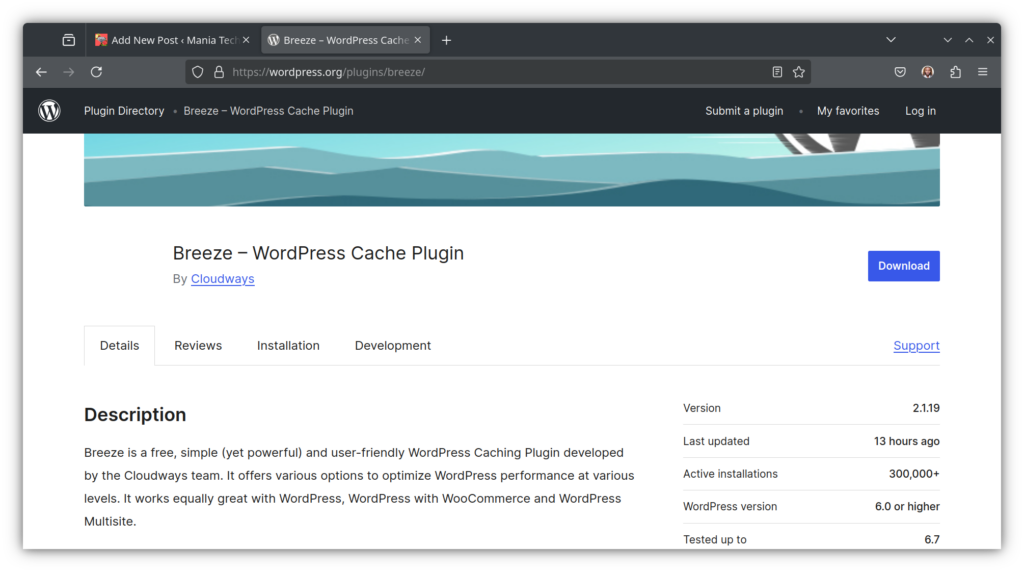
The Breeze Cache Plugin by Cloudways, on the other hand, is what we recommend as it packs numerous features all in one plugin—including a database optimization/cleanup feature.
The beauty of going with Breeze is that it is deeply integrated with all Cloudways servers. Moreover, it is also built to work with Varnish caching on Cloudways, and also Redis object caching.
Additionally, every time you make an update to a post or page, Breeze will automatically purge all these caches for you—on top of allowing you to do WP DB cleanups on-demand. The plugin’s interface is also way simpler than WP-Optimize’s UI— making it way more user(and developer) friendly.
4. Error Log Tracking with WP Debugging
Server errors and plugin conflicts can cause major headaches. Enable debugging logs using plugins like WP Debugging to spot issues before they impact your site.
Use Case: A client once reported frequent crashes on their site. By reviewing the error logs, we discovered a poorly-coded plugin was causing memory leaks. Disabling the plugin resolved the issue instantly.
Be careful though, with what’s captured in your logs and where they are stored on your server. Best practices include storing these logs in a non-public part of your server, and not within the WordPress home directory—as its content are inherently public, except when files are explicitly protected.
5. End-to-End Complete WordPress Application Caching Management with the Breeze Cache Plugin
WP-Optimize is definitely something but what you really need is an end-to-end complete WordPress caching management plugin—the Breeze Cache Plugin by Cloudways. Instead of a plugin that just works well, why not go for one that is completely integrated to the Cloudways stack.
Similar to how AI models (LLMs) need a Model Context Protocol (MCP) for contextualization, the Breeze plugin would integrate with the extensive suite of Cloudways server tools, including Cloudways CoPilot, meaning that beyond the benefits that both—Breeze and CoPilot—have individually, you can now bring their power together to help supercharge monitoring and troubleshooting effectiveness.
The Breeze Cache plugin, moreover, is an extensive plugin that goes beyond caching, and delivers script optimization, an integration with Heartbeat, browser caching, and integration with the Cloudflare—or any other—CDN, plus so much more.
Mind you, Cloudways also offer the Cloudflare Enterprise add-on; which gives you access to super-useful enterprise-plan Cloudflare features, for just a small fee—$10 or less. Imagine that!
You can get a 20% Cloudways Discount by using our promo code ‘MANIAINC‘. We may get a commission when you do or when you get a Cloudways plan via one of our links.
Proactive Maintenance: Keeping Your Server in Top Shape
Monitoring your server is half the battle. The other half is proactive maintenance
… And when I say maintenance, I mean proactively monitoring server issues, and solving them BEFORE they lead to downtime.
Maintaining a high-performance WordPress server isn’t about being perfect—it’s about being proactive.
For instance, you may have installed a new AI plugin for WordPress and inadvertently caused an issue with how WordPress Command-Line works via SSH. As a WordPress Developer, CLi issues can easily throw you off your workflow, and you may end up needing to do some in-depth issue identification.
The good thing, however, is that you need not spend weeks finding the bug. This process can be done quickly, especially with a tool such as the always-on Cloudways CoPilot.

CoPilot on Cloudways will always keep an eye on your server and webstack 24/7… no worries, no checking and re-checking.. just reliability, quick bug detection, and custom fixes suggestions—with code snippets.
Cloudways CoPilot is more than a home run, it’s winning the SuperBowl for server health monitoring and troubleshooting.
Try Cloudways CoPilot for Free: Get 6-Month CoPilot Credits
You can get a 20% Cloudways Discount by using our promo code ‘MANIAINC‘. We may get a commission when you do or when you get a Cloudways plan via one of our links.
Here’s how to stay ahead of potential issues:
1. Regular Updates
Outdated WordPress core files, themes, or plugins are a recipe for disaster
. Not only do they slow down your site, but they also leave you vulnerable to security breaches. And in today’s AI age, things are moving super-fast… I mean like really really fast.
Action Plan:
- Enable automatic updates for minor WordPress releases.
- Schedule regular check-ins to update plugins and themes manually.
- You can also use a system cron to schedule daily/weekly updates.
Things can go from okay to disastrous super-fast in today’s current AI world… AI vulnerability detection and mitigation requires active, intentional, and robust server protection. These are more crucial today, as we see everyday on The Geekline tech feed.
2. Caching for Speed
Caching is one of the simplest ways to improve server performance
. It works by storing static versions of your pages, hence reducing the workload on your server. Even so, to truly draw benefits, caching configuration is more nuanced than just installing a plugin and activating it.
Effectively setting up and configuring caching necessitates the careful setup, configuration, and orchestration of three intricate WordPress caching layers—the application layer, the server layer, and the edge caching layer (on your CDN). Moreover, how effective caching will be for your web stack is heavily dependent on the type, capability, and features of the web servers you use.
You can read more on how to configure WordPress caching for increased speed, performance, and user experience for details on how to do just that.
Top Tools:
Here are a few tools we recommend to get started:
- Breeze Cache Plugin: A fully-kitted WordPress page cache plugin that also includes script minification features, and is fully integrated with Cloudways’ web stack.
- Redis: A powerful object caching solution (caches db results for repeated queries). Cloudways offer the Pro version of Redis to all users as a FREE add-on.
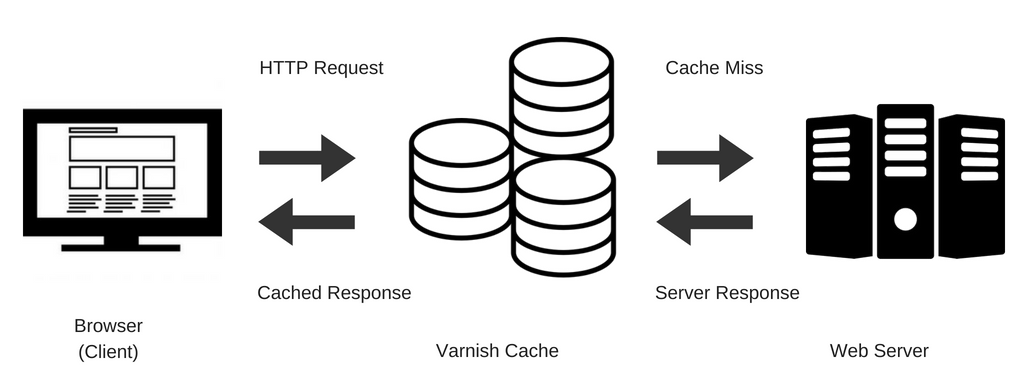
- Varnish: A front-end accelerator for ultra-fast page loads. Where pages would have taken 5s+ to load, with Varnish, they take 600ms or less. Varnish caches PHP responses and static pages, delivering results directly from cache and avoiding the overhead of repeated PHP processing or page renders on consequent user requests.
- WP Rocket: A user-friendly caching plugin for WordPress. Another option for page caching with numerous features, only bested by Breeze.
3. Content Delivery Network (CDN)
A CDN reduces the distance between your server and your visitors by storing copies of your site on globally dispersed servers—think a worldwide server network
. When a user requests a page, they receive the cache copy, from the CDN’s edge servers—but specifically, the servers closest to them.
Cloudflare is the most popular and most widely used CDN. Cloudflare is essential to ensuring WordPress site security, speed, and performance—though it can be limited for complex web stacks if not using the Business or Enterprise plans. Don’t get me wrong, the free version still does super well, but why settle for free when Cloudways offer an Enterprise-plan equivalent for less than $10—much lesser than what the plan is available for directly from Cf.
A load balancer is like a traffic policeman for your site—guiding users on the fastest routes to getting what they need.
Popular Options:
- Cloudflare: Free CDN with additional security features. Widely used, robust WAF, load-balancing, and a good-enough free plan.
- KeyCDN: Affordable and beginner-friendly. Truly though, not as powerful. For a CDN, the more widely it is used, the more widely distributed its edge servers will be (and the more you stand to benefit from edge cache delivery).
4. Routine Backups
Backups are your safety net. In case of server failure or data loss, a recent backup ensures you can restore your site quickly. Here’s the thing though… does your web host really allow you the tools you need to schedule, delete, and fully automate site backups?
Recommended Plugins:
- UpdraftPlus: Schedule automatic backups to cloud storage. Good-enough free plan and can backup to remote storage such as Google Drive, etc.
- BackupBuddy: A premium option with robust features. Haven’t used this one so I may not be in a position to point out effectiveness.
These two are good but there’s better. Cloudways not only offers fully automate-capable backups—on both the server and application levels—but they also allow you to schedule backups as you need (daily, weekly), at no additional cost.
Additionally, they also offer the option to either backup locally, or on off-server storage that is also free of charge. So, not only can you take a backup whenever you want, but you can also choose to either store it on your server, or on their complementary service.

There’s more… with Cloudways, you won’t really need to take as many backups in the first place.
Here’s why: their robust site-staging platform.
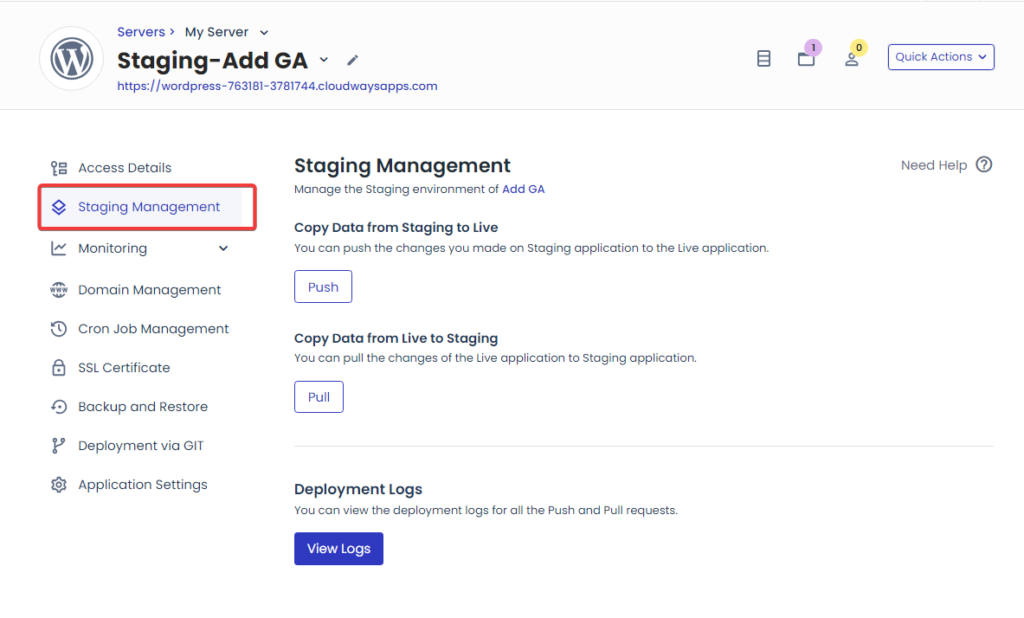
Yes, all Cloudways servers come with a FREE site-staging feature. With just a single click, you can create a staging copy of your site, do development work on that version, and then pull it to the production site. Again, all it takes is just a single click… revolutionary.
No endless troubleshooting for WordPress backups plugins. Not only would you get fully-integrated server health monitoring and troubleshooting via CoPilot, you would also get the backups and site-staging features—all for the price of your server.
Explore Cloudways’ plans—you’ll get FREE Cloudways CoPilot credits for the first 6 months.
PS: We may earn a commission at no extra cost to you 🙂
Troubleshooting Common Server Issues
Even with monitoring and maintenance, issues can arise. Ranging from issues caused by outdated plugins and themes, misconfiguration, or memory issues, even a small issue can bring down your site—hence the need for effective troubleshooting.
But how do you actually troubleshoot strategically? Do you just login via SSH and get started with ‘sudo’, do you just install a plugin like Query Monitor and check the latest logs, or how really would you know that something has gone awry? More importantly, how would you know what is causing the issue and how to solve it?
Here’s how to troubleshoot like a pro:
1. High CPU Usage
Symptoms:
Slow site performance, frequent crashes. The smoking gun? A super slow admin page. If you or any of your users are experiencing a laggy admin interface, then something is wrong.
Fix: Check for resource-hogging plugins or excessive bot traffic. Tools like Query Monitor or New Relic can help pinpoint the source.
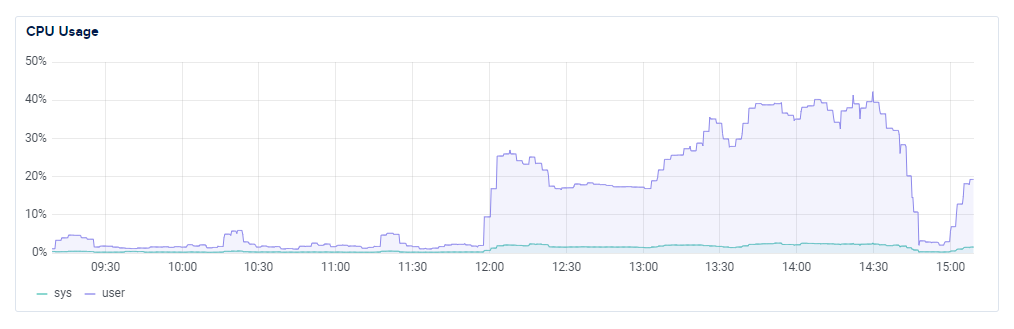
High CPU usage is usually caused by resource exhaustion—literally and figuratively. Your WordPress database may be having thousands of unused meta DB entries. Your host’s tech may be outdated, or their config may lack the needed (modern) optimizations for technologies such as Apache w/PHP 8.4.
With Cloudways, on the other hand, you have the choice of their CPU-Optimized servers—which come pre-configured with Lightning Stack. These servers use the latest tech for their processors (ex. AMD-EPYC), have fast NvME storage disks, and are essentially built for performance from the ground up.
Add Lightning stack on top of that, and your LearnDash LMS site will be ‘breezy’, to say the least. The same can be said for a WooCommerce store.
Where a huge Woo database with thousands of product catalogs would have taken minutes to load—and dissuade users from buying—Cloudways’ CPU-Optimized droplets would take milliseconds. Think of all the income you may be missing with a slow, laggy Woo Store—and how moving to Cloudways could help you recover it.
You can get a 20% Cloudways Discount by using our promo code ‘MANIAINC‘. We may get a commission when you do or when you get a Cloudways plan via one of our links.
And you’d think these servers are expensive but naah. You only pay 20% more than you would for standard servers; but you get thousands worth of value. You can read more on our in-depth guide on how to leverage combining Cloudways CPU-Optimized servers with Lightning Stack for increased performance. It is one of the easiest, fastest ways you can maximize return-on-investment(ROI) for your online business.
If you need even more performance and power, you could also go for the Cloudways High-Performance Premium droplets.
Discover Cloudways Premium High-Performance and CPU-Optimized Droplets
2. Slow Database Queries
A slow WordPress database can be very frustrating. Your admin pages will be laggy, the front end will also falter in performance, and you may end up spending months trying to optimize.
If you’re running a WooCommerce site, dynamic pages such as ‘cart’, ‘checkout’, and ‘my-account’ pages will take ages to load—pushing away users, limiting sales, and dissuading search engines from indexing your content.
Symptoms: Pages take forever to load, especially dynamic content.
Fix: Use Query Monitor to identify slow queries and optimize them.
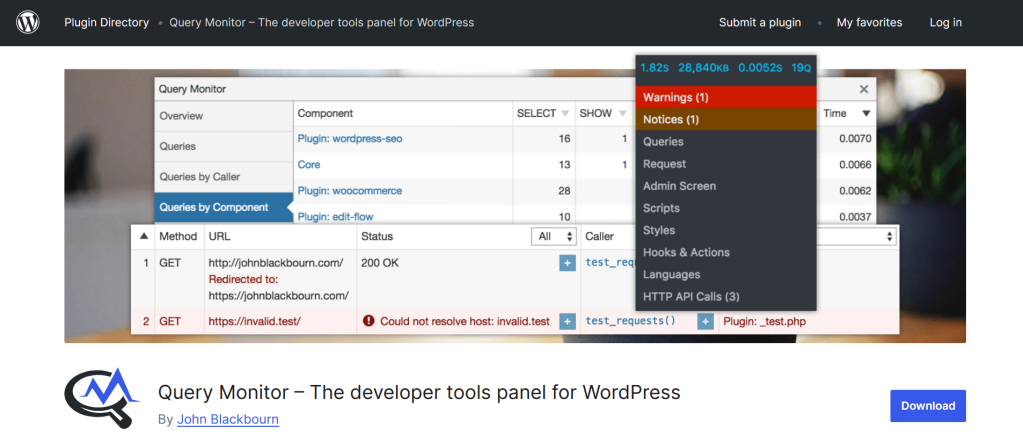
The Query monitor plugin is effective for doing this and can pinpoint issues—via PHP logging.
Even so, getting to the root of the issue is more nuanced than that. PHP logs can only go so far, necessitating that site admins integrate Redis Object Caching, which we’d recommend as a good starting point.
Redis caches database objects, ensuring that consequent requests are fetched from that cache, and not re-queried from the database.
As we saw in The ultimate guide for WordPress Caching, a re-query of the WP database (during each user request) can be super-taxing for your database. Redis alleviates that, as does correctly integrating it with Varnish, and page caching—there’s no need to have your server jump up and down all day, during Black Friday, to fetch the same product data for popular and top-selling products.
Redis would allow the server to cache this data, and then just deliver it from its cache on similar, subsequent requests. Setting up Redis yourself, however, can be quite tricky, especially since most web host either don’t support it on their servers—or don’t care to set it up correctly.
The good news, however, is that the three WordPress caching layers are pre-configured and fully integrated on all Cloudways’ servers.
No fancy setups, no endless ssh commands, it’s just as simple as starting a Cloudways trial using the link below; and you’re set.
3. Inconsistent Speeds
It can be very frustrating to have your site feeling superfast and light-as-a-feather one day—only to have it slowly crawling-by another day (yes, pun intended ;). Inconsistent site speeds are a hallmark of shared hosting—and it doesn’t just happen on shared hosting plans.
Your host may also be using shared CPUs (or Virtual CPUs, vCPUs) for several users. As a result, sharing the same processor with a LearnDash site—that’s probably not even optimized—could weigh heavily on your site, especially during times when learners are taking tests.
To beat this issue, you need to upgraded to a managed WordPress host. We recommend Cloudways as it is the host we use—and have used for the last 5 years.
Symptoms: Your site loads fast sometimes but drags at other times.
Fix: Your hosting provider might be the bottleneck. Consider upgrading to a managed WordPress host like Cloudways.
Cloudways are much more than your average WordPress host. Not only do they bring together 5 of the biggest names on Cloud hosting—AWS, Google Cloud, Vultr, Digital Ocean, and Linode—they also offer a host of crucial add-ons and features. These include;
- Full backups infrastructure with multi-level backup features, backups scheduling, and off-server storage options.
- Full 3-layer WordPress caching setup—Breeze for page caching, Varnish for server caching, and Redis for object caching.
- Variety of Providers and Choice for Server Types: You can choose standard servers, CPU-Optimized servers, or their High-Performance droplets. The latter two also use Lightning Stack, which are way faster than standard web stacks—or even the hybrid stack on Cloudways.
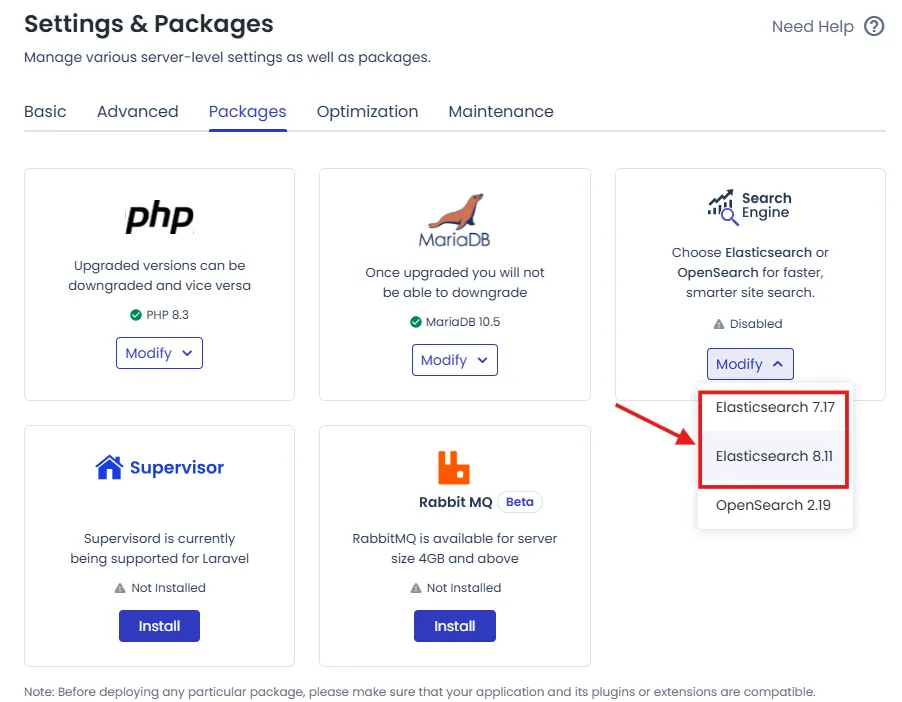
- A host of add-ons for essential optimization technologies such as: Redis, RabbitMQ, Cloudflare Enterprise, and New Relic, just to mention a few.
- Affordable pricing plans, with pay-as-you-go, P-A-Y-G pricing. You’ll always know what you’re expected to pay and will only pay for what you have used. Use a server for just a few hours for testing, for example, and you’ll only pay for the hours the server has been on.
- An industry-standard 24/7 support team. No endless waits for support reps to reply to your messages, Cloudways’ staff are very quick to reply, very helpful, and will guide you correctly—with help from Cloudways’ in-depth documentation.
Couple all these with Cloudways Co-Pilot, and you can begin seeing why moving your site to Cloudways could be such a power move. Rather than trying to build for growth on a weak foundation, with Cloudways, you’ll be building on solid ground. No funny payments, no endless server issues, and since you’ll have the tools and capabilities you need, you can truly scale your business.
Scaling Your Server for Growth
As your site grows, so do your server’s demands
. Your site’s needs won’t scale linearly, however. It’s just not that simple. Depending on whether you are running a blog, a LearnDash site, or a WooCommerce store, your needs may be more DB optimization rather than CPU optimization, for example.
Balancing all these correctly, and doing it without breaking the bank can be very daunting…
Here’s how to scale without breaking the bank:
1. Choose the Right Hosting
Not all hosting providers are created equal. For high-performance WordPress sites, managed hosting is worth the investment.
The single most impactful thing you can do to optimize your site is choosing the right WordPress host.
Top Pick:
- Cloudways: Flexible and affordable. Managed hosting with excellent support, extensive add-ons, an easy to use server dashboard, and flexibility that allows for proper customization..
Cloudways doesn’t just give you the right tools to help you scale; they pre-configure their servers to your specific needs
.
A WooCommerce app on one of their servers will come fortified with Redis Pro, and product catalogs will be fetched very fast, for instance.
WordPress blogs will enjoy the fastest page caching possible, with a reliable Varnish server cache that’s prebuilt and pre-tuned to work with the caching plugin of choice—and we highly recommend Breeze since is natively integrated to their servers.
Similarly, LearnDash LMS sites can rely on Cloudways CPU-Optimized/High-Frequency servers for sub-second page loads—without having to hire a DevOp to set up Lightning stack. You can read more about this on How Cloudways CoPilot Makes WordPress Server Troubleshooting Easier and Saves You Hours (at a Fraction of the Cost of Hiring a DevOp Engineer).
2. Optimize Your Site’s Code
A well-coded site is easier to parse through for your server. Audit your site for bloated code, unused plugins, and jQuery heavy themes. Like Automattic aludes, ‘Code is poetry’. As such, well-structured, clean code is processed faster, and the technologies you will be relying on for performance, speed, and UX will flow—just like good poetry.. haha 😉
But what do we really mean when we say optimize your site’s code? Take this example. We recently saw an opportunity to use AI to do just that, optimize our custom WordPress stack. AI (when used carefully and correctly) can be powerful for code optimization.
In our pursuit of such functionality, we ended up creating the Gemini for WP plugin, which integrates 50+ Large Language Models (LLMs), and has over 37+ CRUD WordPress tools. The tool ended up being so good that we wondered if we’d just keep it to ourselves, or offer it to you at a reasonable price.
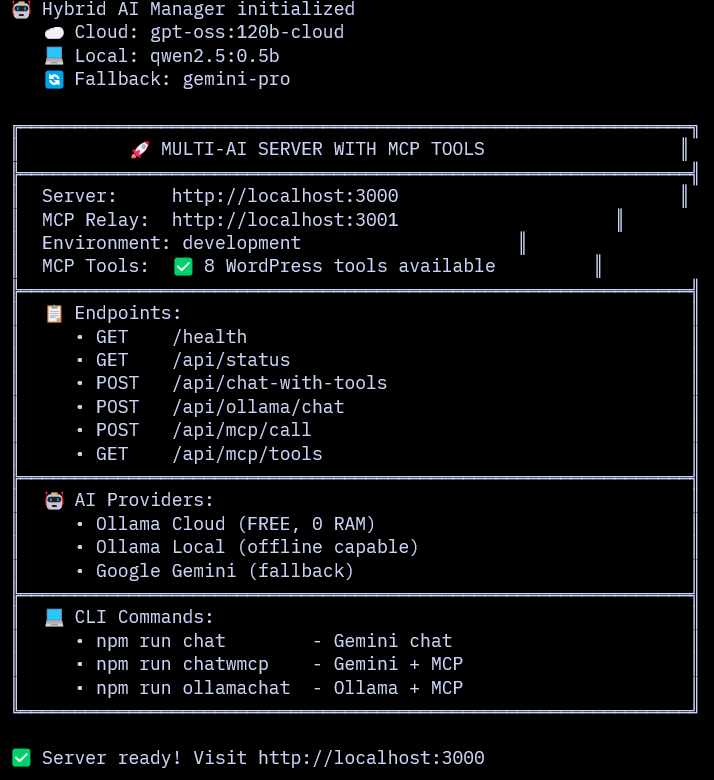
Gladly, we went for the latter and we’d recommend you Start a Free Cloudways Trial, and copy over the plugin’s repo and try it out… All you’d need to do is start a WordPress application on Cloudways, and visit our plugin page to test out basic chat.
Test out AI WordPress Automation on Cloudways—for FREE!
PS: We created the AI for WordPress MCP tool ourselves and are using it everyday. We are literally using it with tools like Gemini CLI and Claude Code to help automate, contextualize, and overall optimize our site.
Also, we may earn a commission when you get a Cloudways plan via one of our links, but we definitely want you try out our plugin—the user feedback we’ll get from that is really what we are looking forward to.
3. Implement Load Balancing
If your site experiences high traffic, consider load balancing to distribute traffic across multiple servers
. This prevents site overload and ensures consistent performance. A load balancer is like a traffic policeman for your site—guiding users on the fastest routes to getting what they need.

The Cloudflare Enterprise add-on on Cloudways is super-useful for just that—as well, as a host of other Cloudflare features like a Web Application Firewall (WAF), Script Minification, DNS, etc. Load balancing on Cf happens via Argo Smart-Routing, which is very efficient—think a police officer manning traffic on every intersection in a city… Even if there’s a huge football game in town, everything will move on seamlessly.
Conclusion: Building a Future-Proof WordPress Server—with the Right Tools for Effective Server Health Monitoring and Maintenance
Maintaining a high-performance WordPress server isn’t about being perfect—it’s about being proactive.
By implementing server health monitoring and maintenance strategies and tools outlined in this guide, you can ensure your server runs smoothly, your visitors stay happy, and your site continues to grow.
Remember, the key is to start small. Pick one or two tools to begin monitoring your server, set up a simple maintenance schedule, and gradually build from there. With a little effort, you’ll transform server management from a chore into a seamless, stress-free process.
Yes, you can bolster how your monitor and troubleshoot on your WordPress site’s server using plugins and custom tools, but ultimately, you need a host you can rely on and one who gives you the crucial tools and tech stack you need to scale and grow your business.
Updating your themes and plugins is crucial, integrating caching can be very powerful for improving speed, and taking backups is essential—but these only go so far. The single most impactful thing you can do to optimize your site is choosing the right WordPress host.
In our experience, that web host is Cloudways. Their hard work building Cloudways CoPilot (with native integration to their servers), is just the latest tell of how committed they are to helping sites like yours grow. Truly.
Cloudways CoPilot is more than a home run, it’s winning the SuperBowl for server health monitoring and troubleshooting. And on Cloudways, you need not fork out thousands of dollars each year to strategically grow your business.
They are an affordable, extensively kitted-out host that gets to the root of the monitoring and troubleshooting issue—deep WordPress troubleshooter integration to your custom setup and web stack.

That’s exactly why we felt the need for our Gemini MCP Tool plugin for our custom stack. However, you need not spend weeks building your own. Cloudways CoPilot, and Cloudways’s host of tools and features have you sorted… Take it from a developer, blogger, and WordPress site owner like yourself.
Explore Cloudways’ Plans—we’ll send you a complementary copy of the Premium version of our Gemini for WP plugin, just for good measure—so you can test it out for your own setup (More details below).
Your WordPress site deserves the best foundation—so let’s build it together.
PS: We may earn a commission when you make a purchase using our links. If interested in getting a premium copy of our AI tool for WP, make sure you get a Cloudways plan via this post, and then contact us—we’ll send the premium copy of the plugin to the first 10 people to reach out free of charge. This is a personal initiative from me (and not jointly with Cloudways), as per our Privacy Policy, and Terms and Conditions.
You can get a 20% Cloudways Discount by using our promo code ‘MANIAINC‘. We may get a commission when you do or when you get a Cloudways plan via one of our links.
More from Mania Africa:
 The Ultimate Server-Side Caching Guide for WordPress: Redis, Varnish, and Cloudflare Enterprise Explained
  How Cloudways CoPilot Makes WordPress Server Troubleshooting Easier and Saves You Hours (at a Fraction of the Cost of Hiring a DevOp Engineer)
  Maximize ROI for your SMB Website with Cloudways’ CPU-Optimized Servers + Lightning Stack: Scale for Long-term Growth at an Affordable Price
  Easy and Quick WordPress Optimizations with One-Click and One-Plugin Solutions
  Mastering Server-Level WordPress Optimizations: Proven Strategies for Blazing-Fast Performance
  5 Reasons Why Your Website Needs Managed Cloud Hosting (and Why We Think Cloudways is the Best)
  Why Your WordPress Multisite Is Slowing Down — and How CPU-Optimized Hosting Can Fix It
  Free and Paid Ways to Secure WordPress: Essential Tips for Securing Your WordPress Site